


Long time no see!
Thank you to everyone who kept pushing me to get back to it and helped me find useful information to share with all of you. Things are definitely not slowing down. If anything, they are moving faster than ever, and having reliable information you can count on is more important than ever. We are returning to a bi-weekly schedule and share the news we are seeing, with our own take on what it means.
Thanks everyone that has helped get back to this and for helping build the content for this edition.
This edition is a big one and we know it. Since we are picking the newsletter back up after a bit of a break, there was a lot to catch up on across Admin, Jira, Jira Service Management, Confluence, Rovo, Focus, Bitbucket, Goals, Loom, and Analytics. The good news is that by moving back to a bi-weekly rhythm, future editions should be a little leaner and easier to digest.
A few highlights worth keeping an eye on:
- Confluence Approvals are now in beta
- Rovo is now HIPAA-ready for eligible organizations
- Jira can launch AI coding agents directly from tickets
- Solution Composer is coming to help build service desks from a prompt
- Bitbucket Merge Queues are now generally available.
We would also love to hear from you. Please send feedback our way what you would like us to cover in future editions, whether you enjoy the newsletter, and whether it is useful for you and your teams. Your input will help us make each edition more relevant and valuable.
Happy reading!
Atlassian Admin and Ecosystem
Unified Users and Groups: One View. Every User. Every Group
Tired of jumping between sites just to figure out where a user belongs? Those days are over. Manage all your users and groups from a single, unified directory: no site-hopping, no guesswork, and nothing to set up. Just one place for everything.
Performance and Scale Digest: 2026 Q2 Bigger, Faster, Still Standing
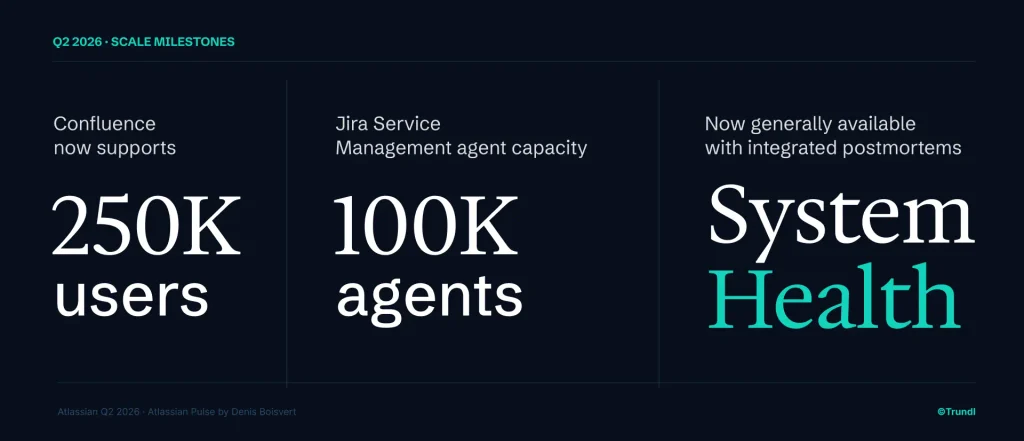
Whether you’re supporting thousands or hundreds of thousands of users or operating at enterprise scale, Atlassian is ready to grow with you. The numbers this quarter are borderline showing off. This quarter brings 250K-user support for Confluence, 100K-agent capacity in Jira Service Management, and System Health now generally available with integrated postmortems, so when something goes sideways, you get clear insights into what happened instead of just wondering why.
Automation Changes Now Have Nowhere to Hide
No more wondering who changed what. Automation create, edit, and delete events are now traceable org wide, right in the Admin audit log. No more automation mysteries, no more “it just started doing that.”
How to spy responsibly:
- Head to admin.atlassian.com, select your org.
- Select Insights, then Audit log.
- Use the Activity filter and search “Automation.”
Audit Logs Get Nosier (In a Good Way)
Ever had that moment of “wait… who logged in as who, and why?” Now you don’t have to just wonder.
Admins can now slice audit logs by authentication type and on-behalf-of actions perfect for chasing down impersonated logins, or that one support session nobody remembers approving.
How to snoop (legitimately):
a. Go to Atlassian Administration and select your org if you’ve got more than one.
b. Head to Security, then Audit log.
c. Use the new Authentication type and On behalf filters to narrow things down.
Fewer mysteries, more receipts.
Attachments Get a “Look, Don’t Touch” Sign
Your data export rule just got a promotion. It used to just block exports now it’s also blocking downloads of files attached to Confluence and Jira. Once it kicks in, that download button quietly disappears from attachment lists, macros, and file previews.
Heads up: this will affect any existing policy where the data export rule is already set to block exports and it requires Atlassian Guard Standard.
Make Sure the Guardrails Are Still Guardrailing:
Go to admin.atlassian.com, select your org.
Select Security > Data security policies.
Select a policy and check whether exporting data is blocked.
Jira
Rovo Says: No More Staring at a Blank Jira
That dreaded blank-canvas moment when you have to set up a new space from scratch? Rovo’s stepping in to handle it. AI-assisted space setup is coming to Jira, so you can skip the “where do I even start” phase entirely.
75+ New Smart Values, Now Actually Findable
Plot twist: these smart values were there the whole time. You just needed a photographic memory (or a very good bookmark) to use them.
Now over 75 of them are labeled and sitting right in the panel no more digging through docs or reciting syntax from memory. Just browse, click, done.
Automation just got a lot less “wizard required.”
Sandbox to Production, Now with Training Wheels (Beta)
Pushing config changes from sandbox to production used to feel like defusing a bomb blindfolded. Not anymore.
Deploying config changes now comes with dependency previews and pre-flight checks so you can actually see what’s about to break before it breaks.
Less “hope for the best,” more “know before you go.”
Multiple Saved Views Land in List and Timeline
You know the drill: someone customizes the “official” view, someone else changes it back, and suddenly it’s a full-blown filter turf war. Not anymore.
List and Timeline now support up to 10 named, saved views per space so everyone can have their preferred setup without anyone having to “fix” anyone else’s.
How to Build a View Without Starting a Filter War:
Open your space and go to List or Timeline view.
As a space admin, look for the + in your space navigation to add a new view.
Customize it (filters, etc.), then click Save to share it with your team.
Everyone’s happy. Nobody’s filter got deleted. Peace restored.
Filters Get a Glow-Up
Three things worth knowing about Jira’s filter overhaul in List view, Board (Software space), and Backlog (Software space):
Saved filters now live right in the panel no more hunting for them.
Dates no longer require a JQL degree to filter by. Pick a date, done.
AI filtering is cooking in the background describe what you want in plain English, get the filter. Still in the oven, but it’s coming.
Filtering: getting friendlier, one release at a time.
Your AI Coding Agent, One Click from Any Ticket
Copy-pasting ticket details into your coding agent was never anyone’s favorite hobby. Consider it retired.
Jira now launches your AI coding agent of choice straight from any work item Claude Code, Cursor, Copilot, Codex, or VS Code pre-loaded with the ticket’s full context. No re-typing, no losing details in translation.
How to Hand the Ticket to the Robot Without Copy-Pasting:
Open any Jira work item and go to the Development panel.
Click “Open in coding tool” and pick your agent from the dropdown.
Desktop tools (Cursor, Copilot, Codex) open with context pre-filled hit enter and go.
Terminal/CLI tools (Claude Code, Rovo Dev CLI) get a modal with the full prompt ready to paste in.
From ticket to code, minus the middleman!
Hand Tickets to Cursor Like a Teammate
Cursor doesn’t take lunch breaks, doesn’t ask for PTO, and won’t complain about the ticket you just assigned it. Frankly, it’s the ideal teammate.
You can now assign Jira work items directly to Cursor from the Jira UI and watch it work in real time.
How to Hire Cursor Without HR Paperwork:
As a Cursor admin, go to Cursor integrations and click Connect next to Jira.
Continue to the Cursor listing in the Atlassian Marketplace and click Get it now.
Select your Jira site, review, and install.
Click Configure on the pop-up, then connect the Jira site to your Cursor team.
Connect GitHub/GitLab, enable usage-based pricing, confirm privacy settings, and choose a default repo/model/branch.
Head back to Jira and start assigning work to Cursor.
Your newest team member never sleeps. Use responsibly!
Customize Your Epic Work Type During Project Creation
Every team has that one work type name nobody actually likes but everyone’s too busy to change. Now you can fix it before it even sticks.
You can now rename and re-icon your Epic work type right in the project creation wizard so your project speaks your team’s language from day one, instead of “Epic” by default for the fifth year running.
How to Rename the Thing Before Everyone Gets Attached:
Select Create project in Jira, choose a template, like Kanban or Scrum.
In the wizard, find the Work types section, select Epic to rename it or pick a new icon.
Finish project creation to see your customized work type live.
Small change. Way fewer “wait, what’s an Epic again?” Slack messages.
Jira Service Management
Build Your CMDB on a Proven Foundation (Beta, EAP)
Why reinvent the schema? The new Assets Common Data Model is here to fix that with ready-made, ITIL-aligned asset schemas out of the box, helping you build a consistent, scalable CMDB without starting from a blank slate.
How to Get Past the CMDB Velvet Rope:
On Service Collection Standard+? Submit the opt-in request via the portal.
Once provisioned, your project or site admin activates CDM through Assets settings.
A CMDB that actually looks like someone planned it.
Status Pages Get a Serious Upgrade
Three fixes, three different flavors of status-page pain, all solved in one quarter:
Automate incident updates by publishing to your Status Page directly from Jira Automation. “Send update to Statuspage” is now a Jira Automation action. Because “we forgot to update the status page” is not a great line in a postmortem. Now it’s a real action in the Automation rule builder, right alongside Send email and Send Slack message.
How? Site/Space Settings > Automation > Create rule > Add action > Send update to Statuspage
Manually add subscribers (perfect for executives, VIPs, or key stakeholders) without waiting for self-service sign-ups. You can add anyone via a comma-separated list of emails, and they get verified and notified like they signed up themselves (they can still unsubscribe, no hostages here).
Where? Operations > Status Pages > Select your page > Subscribers > Add subscriber
Use your own custom domain with guided setup and automatic SSL provisioning for a branded experience. Turn your-tenant.statuspage.io into status.yourcompany.com with one guided screen: exact records to add, live DNS validation, one-click verification, and error messages that actually tell you what’s wrong.
How? Operations > Status Pages > Edit page > Advanced settings > Custom URL
Incident time, audience management, day-zero setup all a little less painful now.
Workforce Management Gets Smarter
Four new capabilities for staffing smarter instead of guessing:
Coverage Gaps When someone drops off a shift, admins can see exactly where the hole is and reassign it before it becomes a crisis.
Capacity Rebalancing Workload shifts unexpectedly? Redistribute work across people and teams in real time so SLAs don’t quietly slip through the cracks.
Forecasting A new out-of-the-box template on the Summary page uses historical data to help you see demand spikes coming instead of getting blindsided.
Reporting Also new on the Summary page: performance insights across Scheduling, Availability, and Capacity, all in one place.
Bonus: an Early Access Program is open for AI-based Smart Routing and Skills-based Routing, if you want in early.
Run Incidents From Microsoft Teams, No Alt-Tabbing Required
Mid-incident, the last thing you need is to bounce between five different tabs just to add a responder. Now you don’t have to!
ChatOps for incidents just landed in Microsoft Teams: add responders, add stakeholders, update status, and tag affected services, all straight from the incident chat.
How to Fight the Fire Without Leaving Teams:
Open the incident chat in Microsoft Teams.
From the incident summary card, choose the action you need: Add Responder, Add Stakeholder, Update Incident Status, Add Affected Services.
Search, select, and confirm. The changes sync to Jira Service Management immediately.
Fight the fire from where you’re already standing.
Solution Composer: Describe It, Get a Service Desk (EAP) Coming Aug 3, 2026
Setting up a service desk from scratch usually means a lot of clicking through request types, queues, and SLA configs while quietly wondering if there’s a faster way. There is.
Solution Composer lets you just tell Rovo what you need in plain English describe the desk you want, and it hands back request types, queues, and SLAs already built.
Prompt in, service desk out.
Agent Availability Now Updates Itself
Nobody actually remembers to toggle their status when they step away. Now they don’t have to!
Jira Service Management automatically updates agent availability status based on activity real-time visibility into who’s actually working, no manual toggling, better routing accuracy as a bonus.
How to See Who’s Actually at the Keyboard:
In Jira Service Management, go to Space settings.
Select Workforce, then Availability.
View real-time availability, based on agent activity like clicks, scrolling, or typing.
Status that updates itself. Revolutionary, really.
Your Knowledge Base, Scoped to the Folder That Actually Matters
Linking an entire Confluence space to your service project when you only needed one folder’s worth of docs always felt like overkill now you can be a lot more surgical about it.
Project admins can now link individual Confluence folders to a knowledge base instead of full spaces including folders from a different site in your org, not just the same one. Folders happily coexist with spaces and third-party sources in the same knowledge base, and articles show up everywhere they should: help center, virtual service agent, issue view, and portal.
Permissions inherit from the parent space, so nothing gets exposed that shouldn’t be.
Why This Beats Dumping the Whole Library on People:
Show help seekers and agents only the content that’s actually relevant.
Cut the noise instead of dumping an entire space on them.
Pull content from multiple sites into one knowledge base, without the mess.
How to Point People at the Right Shelf:
Go to your service project > Space settings > Knowledge base.
Select Add knowledge.
Choose the site and visibility.
Select Content > Folder.
Pick your folder from the dropdown and select Link.
Precision over pile-on.
Jira Product Discovery
Card Covers Are Here, Give Your Ideas Some Personality
Somewhere between “functional” and “framed art,” your idea board just found its niche.
Card Covers in Jira Product Discovery let you customize idea cards with solid colors, gradients, Unsplash images, or your own uploads. Your roadmap board just quietly became a mood board.
How to Give Your Idea Cards a Makeover:
Open any board view in Jira Product Discovery.
Go to Display settings and switch on Card cover images.
Open the idea card menu, select cover, pick your image or color.
Function, meet aesthetic.
More Delivery Insights, Right Where You Need Them
Bouncing between Jira Product Discovery and the actual delivery tickets just to check a due date or story point? Not anymore.
The Delivery tab now lets you choose exactly which fields show up for linked delivery work items Assignee, Sprint, Fix Version, Due Date, Story Points, Time Tracking, and more. You can even resize columns, and your layout is automatically saved for everyone in the space.
How to Stop Hunting for Delivery Context:
Open an Idea in Jira Product Discovery and navigate to the Delivery tab.
Click the More actions menu and open the Field picker.
Select the fields you want to display.
Drag column borders to resize them to your preferred width.
All the delivery context, zero tab-switching.
Confluence
Was This Actually Approved, or Just Discussed Three Weeks Ago?
“Was this actually approved, or just discussed in a comment thread three weeks ago?” That question is officially retired.
Approvals brings formal sign-off directly into Confluence pages no more scattered comments, @mentions, or side threads standing in for a real decision trail.
Key capabilities:
Request formal approvals directly on pages.
Track review states like In Review, Changes Requested, and Approved.
Optionally block publishing until approvals are complete.
Enforce a standard set of required approvers across a space.
Trigger Confluence Automation based on approval events.
View a complete approval history with comments and timestamps.
Set approval expiration windows to keep important content up to date.
Built for the content where “who signed off on this?” actually matters: policies, legal/compliance docs, launch plans, finance/HR documentation, cross-functional pages needing multiple reviewers.
How to Make Approval Limbo Somebody Else’s Problem:
On Confluence Premium/Enterprise: Space settings > Status and approvals > enable approvals.
Go to a page in that space and open the status drop-down.
Select “Start an approval” and choose your approvers.
Reviewers receive notifications, and you’ll be notified as approvals or change requests come in.
Agents Can Now Work With Your Whiteboards and Databases
Up to now, agents could skim your pages. Now they can actually get their hands on your whiteboards and databases too.
Confluence Whiteboards and Databases are now supported in Atlassian Rovo MCP v2 Preview and the TWG CLI meaning agents like Rovo Dev, Claude, and Codex can create, read, and edit them directly. Have an agent build a whiteboard ahead of a brainstorming session, pull key themes across all your retrospective whiteboards, or add entries straight into your databases no manual data wrangling required.
What’s new:
Create and edit Confluence Whiteboards directly from your AI assistant.
Build and manage Confluence Databases without leaving your coding or chat environment.
Expanded Confluence support also includes attachments, giving agents access to richer workspace context.
MCP v2 introduces a redesigned tool architecture that reduces context window usage by over 50%, making AI interactions faster and more efficient.
Your pages, whiteboards, and databases now all fair game for agents, not just read-only territory.
Templates Meet Rovo, Right Where You Pick Them
Picking a template used to mean committing to a blank structure and hoping for the best. Now Rovo can fill it in before you even click “Use template.”
Two Ways Rovo Crashes the Template Party:
“Create with Rovo” in the template library right rail hover over any template while browsing, and there’s a Rovo button waiting to help you iterate on the content right then and there.
Open an existing page or create a new one.
Select All templates (on a new page) or Templates and import under More actions.
Hover over the template you want.
Select Create with Rovo to start generating content.
“Create with Rovo” in the template gallery skip straight from browsing templates to a drafted page.
Go to the Confluence template library (/wiki/templates).
Select the template you want.
Select Create with Rovo next to Use template.
Follow the prompts to generate your content.
Blank template to finished draft, no detour required.
Remix Your Content Into Anything
Stop staring at that wall of bullet points wishing it were literally anything else. Now it can be.
Remix with Rovo turns your existing pages, tables, and live docs into a completely different format slides, charts, diagrams, infographics, or interactive visualizations (think timelines, maps, org charts, flip cards). Give it a table of names and get an org chart. Highlight numeric data and get a chart, or just tell Rovo “pick for me.” And it’s all non-destructive a remix sits on top of your original content, never overwrites it.
Three Ways to Give Your Content a Costume Change:
a. Highlight text, select Remix from the floating toolbar.
b. Select Remix in an element’s own toolbar (like on a table).
c. Hover over a block, select Remix from the right-side action.
No edit access? You can still Remix read-only content just hit Copy and paste it wherever you need it.
Same content, infinite new outfits.
AI-Generated Slide Decks, On Demand
The blank-slide dread just met its match! Prompt in, polished deck out Rovo pulls from your pages, live docs, whiteboards, databases, and even Jira projects to draft a full presentation with charts, graphics, and styling already in place.
Four Ways to Escape the Blank-Slide Stare:
a. Create menu > Slides
b. Create with Rovo write a prompt, attach links or files, hit the Slides output
c. Remix from any page or live doc, select Remix and Rovo turns it into a deck
d. Rovo Chat just ask for slides mid-conversation
Everything opens in a live preview first nothing saves until you hit Add to Confluence, where up to 60 people can collaborate on it.
Editing stays AI-native too: ask Rovo to shorten bullets, restyle titles, or swap a chart, or drag-and-drop slides yourself. Version history and a built-in Present mode included.
Pro tip: the sharper the prompt, the better the deck link exact sources, give hex codes for brand colors, and spell out the narrative arc you want.
Prompt in, deck out, blank canvas nowhere in sight.
Block Templates for the Eternally Copy-Pasting
You know that DACI table, status update format, or summary panel you’ve rebuilt from scratch a hundred times? Save it once. Never again.
Block templates let you save a reusable piece of content a table, panel, or status block without going all the way to a full-page template. Works on pages, live docs, and blog posts.
How to Retire Your Copy-Paste Muscle Memory:
Insert a template: Type / followed by the template name, or browse the Template Gallery.
Create a template: Highlight the content (or hover over the block), open the Block menu, select Save as block template, then click Save.
Templates are private by default, but you can share a link so teammates get it added straight to their own gallery they can use it, not edit or delete it.
Bonus: Any template you build in Confluence also works in Jira drop it right into a work item description. Same reusable table, panel, or update, everywhere you need it.
Copy-paste, officially unemployed.
Synced Blocks: One Edit, Everywhere It Lives
That status update, key metric, or team roster that’s copy-pasted across a dozen pages, silently going stale in eleven of them the moment someone updates the twelfth? Not anymore.
Synced blocks let you turn any piece of Confluence content text, tables, images, layouts, cards into a single source of truth. Copy it into other pages, live docs, or Jira work items, and every copy stays live: edit once at the source, updates flow to every destination in near real time.
How to Make One Edit Haunt Every Copy:
Create one: type /sync while editing, or select existing content > drag handle > Sync block
Reuse it: copy the block from the source and paste it into any page, live doc, or Jira work item it lands as view-only, so nobody accidentally edits a stale copy
Check its status: hover the block’s title to see the source and last-edit time, or select Synced locations to see everywhere it’s used
Edit it: only from the source (only source editors can), changes flow out automatically
Unsync it: anytime, either everywhere (from the source) or just at one destination (turns it into normal, independently editable content)
Permissions carry over too if someone can’t view the source, they see a request access prompt instead of the content.
One edit. Every page. Zero stale copies.
Rovo’s Prompt Suggestions Get Personal (and Multilingual)
Staring at a blank “Create with Rovo” screen trying to figure out what to even ask for? Rovo’s about to do the guessing for you.
Prompt tiles are now action-oriented (imperative titles like “Draft a…” or “Summarize the…”, so you know exactly what you’re clicking), activity-based (grounded in pages you’ve viewed or issues you’ve worked on recently, so suggestions actually pick up where you left off), and localized to your selected language, so non-English locales get a native experience instead of an English-first afterthought.
Instead of generic recommendations, you’ll see context-aware prompts designed to help you draft, summarize, transform, and collaborate faster, all in the language you’re most comfortable using.
How to Let Rovo Guess What You Were About to Ask:
Open Rovo Chat from a Confluence page or the sidebar.
Click the Rovo button to open the chat interface.
Explore the Quick Actions section to see personalized, localized prompt suggestions.
Select a suggestion to kick off an AI-assisted task or refine it with your own prompt.
Less staring at the blank page, more starting exactly where you left off.
Rovo
Rovo Is Now HIPAA-Ready
Healthcare orgs can finally bring AI into the fold without setting off a compliance alarm. Rovo now falls under Atlassian’s existing BAA for eligible customers, joining the ISO 27001 and SOC 2 milestones Atlassian’s already hit.
What’s covered: Rovo Chat, Rovo Agents, Rovo Search, and in-app AI experiences across Jira, Confluence, JSM, and Jira Product Discovery on sites running HIPAA-eligible apps.
Not yet in scope: Rovo MCP server, Rovo CLI, the browser extension, and the mobile/desktop apps.
Built-in guardrails (no admin setup required): Rovo can’t write data to any non-HIPAA-enabled Atlassian app, and it can’t write to third-party apps at all keeping PHI locked inside your HIPAA boundary.
How to Bring AI Into the Compliance Zone:
Contact Atlassian Support to get Rovo provisioned on your HIPAA sites.
Go to Atlassian Administration, select your org.
Select Rovo > Rovo access.
Enable Rovo on the apps you want (Jira, Confluence, JSM, JPD).
Before flipping the switch, worth a read: the HIPAA Implementation Guide. It lays out the shared-responsibility model and exactly where the compliance boundaries sit.
AI, minus the compliance headache!
Rovo Writes Your Status Update. You Just Review It.
Writing a status update by manually chasing down every linked goal, project, and sub-area is nobody’s favorite Friday task. Now Rovo does the chasing.
One click pulls everything into a scannable draft goals, projects, and sub-areas, already organized and ready to review, not just a wall of raw links.
How to Let Rovo Do the Friday Chasing:
Navigate to your Focus area.
Select Draft update.
Review and edit inline.
Publish when it’s ready.
Status updates: still your voice, way less of your Friday.
See What Rovo Remembers About You
Rovo’s been quietly learning from every issue, page, and PR you touch for a while now. Up until today, that was a one-way mirror Rovo could see in, you couldn’t see what it had actually learned, correct it, or tell it to forget something.
That’s changed. Profile Memory in Rovo Chat is now GA, built from two sources:
Implicit memory inferred from your Teamwork Graph activity: your role, projects, collaborators, the work you keep coming back to.
Explicit memory things you’ve told it directly, like “always use Australian English” or “never use emojis.” Say it once, it sticks across sessions.
How to Check What Rovo Thinks It Knows:
Open Rovo Chat > … menu > Settings and Memory to: See it read the profile Rovo’s built about your work and projects
Suggest edits propose corrections (updates apply within 24 hours)
Delete explicit instructions remove old preferences you no longer want followed
Toggle chat-derived memory off entirely, or wipe it clean in one click
Memory is scoped per site what Rovo learns about you on one site stays there.
Real example: tell Rovo your preferred weekly-update format once (“bullets, grouped by project, blockers first, no fluff”), and every Friday “Draft my weekly update” just works in your structure, in your voice.
Rovo remembers. You decide what it’s allowed to.
Portfolio Updates Without the Tab-Switching
Writing status updates and chasing dependencies across a portfolio has always eaten more time than the actual meeting it’s for. Two new ways to hand that off to Rovo:
a. New Rovo Studio skills for custom agents build agents that search and retrieve goals/projects, fetch the latest updates, map dependencies, surface risks across a whole portfolio, draft progress updates on your behalf, and understand team ownership/hierarchy. Basically: an agent that monitors your portfolio and flags issues without anyone babysitting it.
b. A contextual Rovo button, one click away now live on every Goals and Projects directory, status page, and individual goal/project. Click it to open a side panel where you can summarize progress, surface risks, or draft an update in seconds.
How to Try the Portfolio Magic Tricks:
Studio skills: Head to Rovo Studio > Tools to find the new Goals/Projects skills for custom agents.
Rovo button: Look for the icon in the bottom-right corner on any Goals/Projects page.
Coming soon: MCP support, so you can connect your goals and projects data to whatever AI tools your team already uses.
Portfolio reporting: from chore to click.
Focus
Funds Is GA: Budget Meets the Work It Funds
Financial data used to live in one system, delivery in another so spend-vs-work reconciliation happened at quarter-end, when it was too late to act. Funds fixes that: budgets, actuals, forecasts, and benefits now sit right on the Focus area, linked directly to the Jira work and goals they fund.
What you get:
Budget, actuals, baseline, forecast in one Funds tab CapEx/OpEx, multi-currency, labor vs. non-labor
Live variance tracking zoom to a quarter, ask Rovo where it’s coming from, tag the owner in a comment
Benefits tracking (revenue, cost savings, custom types) next to the same delivery work QBR-ready
Rovo AI insights (Beta) plain-language variance summaries, no manual analysis
Funds isn’t a system of record it just connects your real numbers to delivery data already in the Teamwork Graph.
Try it: Admins > open any Focus area > Funds tab. Rolling out now to all Strategy Collection customers.
Spend and delivery, same room.
Focus Goes API-First
Your strategic priorities have officially been sprung from island life. No more CSV-export theater Focus now has public REST APIs, one of the most-requested asks since it went GA.
What you get:
Focus Areas API full CRUD on the core strategic object. Pull your entire strategic hierarchy into any BI tool, auto-create focus areas when initiatives get approved, keep names/owners/target dates synced with your system of record, or migrate off a legacy SPM tool without rebuilding by hand.
Funds API connect ERPs directly. Push budget, actuals, and forecast from SAP, Workday, or Oracle straight into Focus Funds, replacing manual CSV uploads with an automated nightly sync.
Who benefits: BI teams skip the export dance and pull data straight into Power BI or Tableau; PMOs kill double data entry; Finance pushes ERP numbers in automatically; IT plugs it into MuleSoft or Boomi like any other integration.
How to Plug Focus Into the Rest of the Machinery:
Generate an API token from your Atlassian account settings.
Or use OAuth 2.0 for app/enterprise integrations.
Explore the full reference at developer.atlassian.com.
Included with your Strategy Collection subscription at no extra cost, and it respects your existing Focus permissions integrations only see what you already have access to.
Strategic priorities, finally talking to the rest of your stack.
Bitbucket
Say Goodbye to Merge Conflicts and Rebase Marathons
Say goodbye to merge conflicts, rebase marathons, and “who’s merging first?” debates.
Bitbucket Merge Queues automatically sequence, validate, and merge pull requests against the latest target branch, ensuring only fully validated changes make it to your main branch. No custom scripts, plugins, or manual rebases required. Developers add their PR to the queue and walk away; Bitbucket handles the rest.
How to Teach Your Branch to Wait Its Turn:
Open Merge queues in Repository settings > Workflow.
Configure a merge queue for your target branch, plus a merge-queues pipeline in bitbucket-pipelines.yml.
Every PR targeting that branch now shows Add to merge queue.
Your branch, self-sequencing.
Bitbucket Tests: Fix It, Track It, Ditch It (Beta)
Finding flaky tests is only half the battle. Now Bitbucket Tests helps you fix, track, and clean them up without leaving Bitbucket.
What’s new:
Fix Flaky Test: Launch an AI agent that diagnoses the issue, implements a fix, and opens a draft pull request for your review. You can use Atlassian’s built-in agent or bring your own custom agent prompt.
Create Jira Work Item: Generate a Jira issue with the test name, failure details, execution history, and metrics already populated, eliminating manual copy-paste.
Remove Test: Hide obsolete or retired tests from your dashboard and metrics. If the test runs again in the future, it automatically reappears with fresh history.
How to Put Flaky Tests on Notice:
Open your repository’s Tests tab in Bitbucket.
Select a test and open the Actions menu.
Choose Fix flaky test, Create Jira work item, or Remove test, depending on what you need.
Review the AI-generated draft PR or the pre-filled Jira issue before proceeding.
Flaky tests: fewer chases, faster fixes.
Bamboo’s Exit Interview, Automated
If you’re still nursing a Bamboo instance in 2026, this one’s for you. The migration tool that automatically converts your Bamboo Deployment Projects and build plans into Bitbucket Pipelines custom pipelines is officially GA no more hours of manually rewriting scripts and translating legacy config by hand.
How to Help Bamboo Pack Its Bags:
Read the full announcement on Atlassian’s blog.
Follow the migration guide.
Run your first bulk migration with the migration tool, available on Docker Hub (atlassian/bitbucket-pipelines-importer).
Bamboo’s exit interview, automated.
Goals
Pick Your Own Goals Directory Landing View
No more landing on “All Goals” just to filter it down every time. Set a default saved view (per-user) your team’s objectives, a tagged initiative, whatever you actually check first.
How: Create a Saved View (try grouping by Team, Tag, or Status), open it, open the menu, select “Set as default.”
Loom
Loom Playlists Have Arrived. One Playlist. One Link. Zero Confusion
Onboarding videos, product walkthroughs, all-hands recordings sharing them has always meant firing off five separate links and hoping people watch in the right order (they don’t). Loom Playlists is now available on Standard, Business, and Enterprise plans, and it fixes exactly that.
What you get:
Curate videos into a guided learning journey with a custom title and description.
Share one link instead of multiple URLs the link stays the same even as you update the playlist.
Control access with Private, Workspace, or Public sharing.
Invite teammates to collaborate with owner, editor, and viewer roles.
Save videos to Watch Later, now integrated alongside your playlists for easier organization.
One heads-up from early testers: embedding a playlist in Confluence doesn’t yet render like a single video embed does Atlassian says a better embed experience is already in the works.
One link. Right order. Every time.
Atlassian Analytics
Key Jira Config Tables Land in Analytics and Data Share
Workflows, statuses, and field visibility previously buried in Jira admin settings now flow straight into Analytics and Data Share.
New tables: Workflow, Workflow Scheme, Work Item Type (+ Scheme), Work Item Status, Project Field Visibility, Field Metadata, Project Key History, plus mapping tables linking it all together.
What it unlocks: trace a work item’s full lifecycle (workflow > status > transitions), see which workflows/types apply to which space via schemes, and check field visibility per work item type rows are per type, not per field group by Project ID + Field name for a unique list.
How to make the data lake notice the new furniture: new Data Lake connections get it automatically; existing ones just need an org admin to edit-and-resave. Data Share needs zero action.
Your config, finally queryable.